Nvidia nano jetson - init xrdp
움 여기서는 vnc 말고 xrdp 셋팅하는걸 참고 하면 좋아 보인다. ^^;
ref : https://www.hackster.io/news/getting-started-with-the-nvidia-jetson-nano-developer-kit-43aa7c298797
Enabling Remote Desktop
Unfortunately the VNC Server will only be running when a user is logged into Jetson Nano on console. If you logout, the server will be stopped. You can’t just unplug your monitor, keyboard, or mouse and run the board in headless mode.
If you want to do that, the easiest way is probably going to be running an RDP server called xrdp. Installation is a lot simpler than setting up VNC.
$ sudo apt-get install xrdp
After installation has completed, you should go ahead and reboot the Jetson Nano board. Once the reboot has completed you can check installation of xrdpwas successful by using the command nmap from your laptop.
$ nmap jetson\
Starting Nmap 7.70 ( https://nmap.org ) at 2019-04-13 01:39 BST\
Nmap scan report for jetson (192.168.1.118)\
As you can see since we’re not logged in, our VNC server has been shutdown, however the RDP server is running despite us currently being at the login screen on the physical machine.
While RDP is a proprietary protocol, Microsoft do provide viewers for most platforms for free, including the Mac, which is available in the Mac App Store.
You should go ahead and install it.

You can install Microsoft Remote Desktop from the Mac App Store
Open Microsoft Remote Desktop and click on “Add Desktop.”
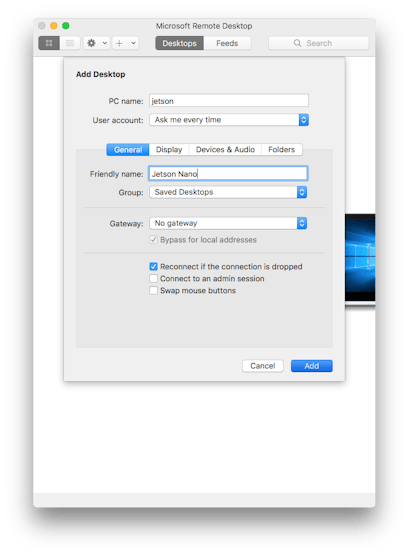


Setting up the RDP client to connect to the Jetson Nano.
Once you’ve configured the settings to your liking, you might want to turn off “Start session in full screen” for instance and set a reasonable resolution for the resulting window’ed desktop. Click “Save” and then open the RDP desktop by clicking on the “Jetson Nano” desktop icon.
When you’re connect to the board using RDP the desktop will look somewhat different. That’s because you’ll be seeing a standard Ubuntu desktop, running Gnome, rather than the older Unity style desktop that is the default on L4T.


Connecting to a slightly different looking desktop.
⚠️Warning You can not be logged in at the physical desktop and open an RDP desktop, conversely if you have an RDP desktop already open you won’t be able to login to the physical desktop. If you have an RDP desktop open and attempt to connect to the Jetson Nano using VNC you will be connected to the RDP session.
If you’re used to VNC when using Remote Desktop you should bear in mind the differences. You’re not viewing the existing Jetson Nano desktop, you’re creating another. That virtual desktop will be persistent until you logout as you would if you were sitting in front of a physical keyboard. If you just close the RDP window and walk away, that doesn’t close the desktop, or log you out. The next time you connect to the RDP server on your Jetson Nano the RDP desktop will look the same.